I was just looking through the photos from our last trip, thinking about which ones would look best in that album you mentioned making. It really got me thinking about how often we snap a picture on our phones, loving how it looks on that small screen, only to be disappointed when it comes back from the printer looking soft or grainy. Since you’re planning to frame a few of these, I wanted to share a few technical details I’ve picked up along the way to make sure those moments look as crisp on your wall as they do in your memory.
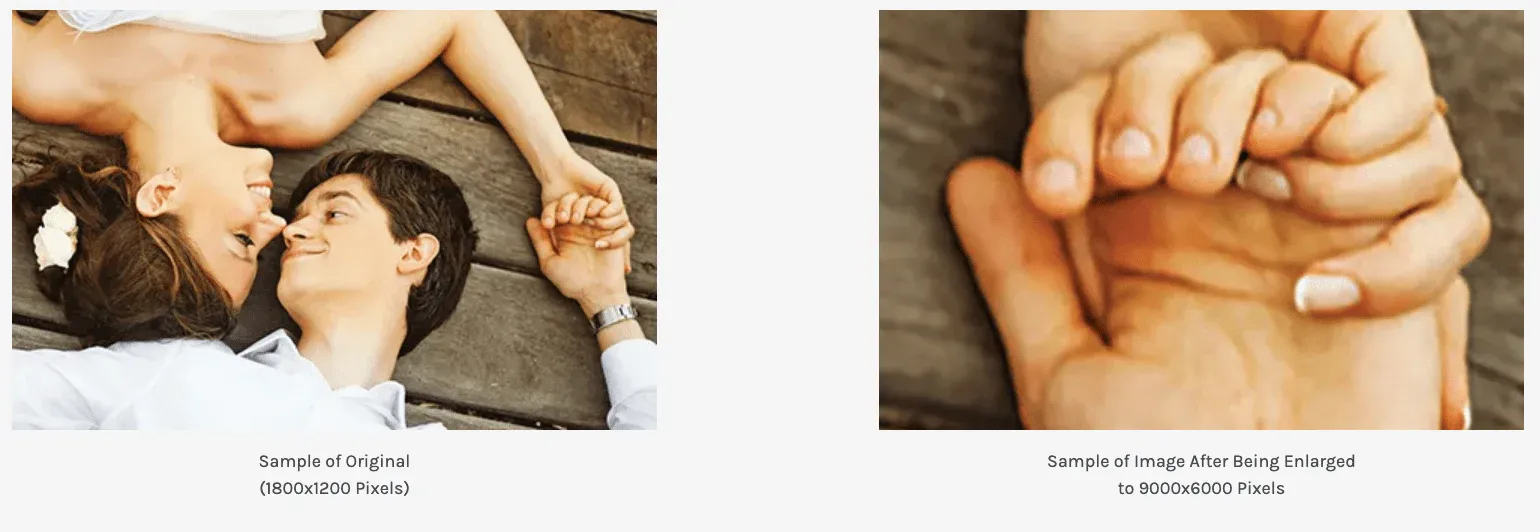
It really all comes down to resolution. At its core, resolution is just the level of detail the image holds-the number of “pixels” packed into the frame. When we have a high pixel count, we get those sharp edges and accurate colors. But if the count is low, the printer has to stretch the information, which is where things get blurry. It’s important to remember that we can’t really “add” pixels to a photo after it’s taken, we can only work with what the camera captured.
Impact of resolution on image quality
When you are getting the files ready, you’ll see terms like PPI (Pixels Per Inch) and DPI (Dots Per Inch). Don’t let the jargon worry you too much. Just focus on the PPI; that’s the digital detail. The DPI is just how the printer interprets that detail with ink. The general rule of thumb I stick to is pretty simple: the bigger you want the print, the higher the resolution needs to be.
If you aren’t sure if a photo is “print-ready,” you can check the file right on your computer before uploading it. On your Windows laptop, just right-click the file, hit “Properties,” and look at the “Details” tab for the pixel dimensions. If you’re on your Mac, open it in Preview and check the “Show Inspector” tool. Even on your phone, tapping that little “i” icon usually reveals the numbers.
Comparison of high vs low resolution digital forms
I know you take most of your pictures on your phone these days. I actually dug up a cheat sheet regarding what print sizes our phones can actually handle. It’s wild to see the difference between the old iPhone 4 we used to have and the new models, but even the newer cameras have limits, especially the front-facing “selfie” cameras.
Here is the breakdown I use to decide if a photo should be a large wall hanging or just a standard wallet print:
If you find a photo you absolutely love but the resolution is just too low for a glossy print-maybe it was cropped too much or sent via text which compressed it-don’t throw it out. I’ve found that printing those specific shots on canvas or linen adds a texture that forgives a lot of imperfections. It gives it a softer, artistic vibe rather than just looking like a mistake.
Also, for the next batch of photos, try switching your camera settings to “High Efficiency” (HEIF) or enabling ProRAW if you have it. It eats up more storage, but it captures so much more detail. And try to avoid zooming in with your fingers on the screen; just walking closer to the subject makes a world of difference for the final print quality.
I can’t wait to see how the project turns out. Getting these memories off our screens and into a real album is going to be so worth the effort.

 Impact of resolution on image quality
 Comparison of high vs low resolution digital forms


